How to use GPT Image 2.6: prompts, settings and examples
GPT Image 2.6 follows instructions closely, which means the prompt decides most of the result. This guide shows how to write prompts for it, from the basic structure to exact text, photos, edits and the new GIF, SVG and markup features, with the settings to use and prompts we tested on GPT Image Hub shown next to what they produced.
Write a GPT Image 2.6 prompt as a short brief: what the image is for, the scene, the subject, any exact text in quotes, the style, and the constraints, one line each. Put every word that must appear in the image in quotation marks, say where it goes, and end with "no other text". For edits, say "change only" the one thing and list what to keep. Start on Flare at medium quality, go to high for small text, and use Sunburst for dense layouts. In our test, a four-word prompt produced a café photo with no headline, while the same idea written as a six-line brief came back as a finished poster with all three lines of text exactly as written.
The structure: one brief, six lines
OpenAI's prompting guide for its GPT Image models recommends writing the scene and background first, then the subject, the key details and the constraints, and saying what the image is for. Labelled lines are easier to write, read and reuse than one long sentence. This is the structure we use on 2.6:
| What to write | Example | |
|---|---|---|
| Intended use | What the image is for; it sets the level of polish | A printed poster for a coffee shop's front window |
| Scene | Where it happens and the background | A warm wooden counter beside a rain-streaked window |
| Subject | The main thing, with its key details | A ceramic mug of spiced latte with a little steam |
| Text | Every word in quotes, with font, size and position | Headline "AUTUMN MENU" in a bold serif at the top |
| Style | Medium, light, palette, finish | Warm film-photo look, soft window light, muted orange |
| Constraints | What must not appear or change | No other text, clean margins |
Skip lines you do not need: a photo with no text needs no Text line. Do not stack style keywords ("8k, masterpiece, trending"); describe what the image has to contain instead.
Vague vs structured: the same idea, two prompts
Four words
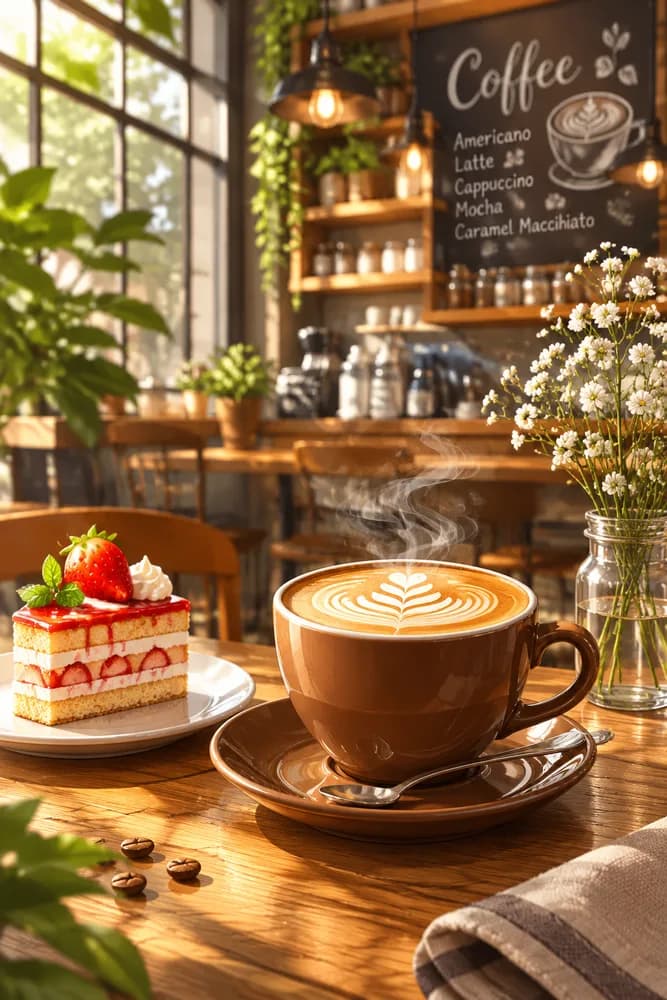
a cozy coffee shop poster
Six-line brief
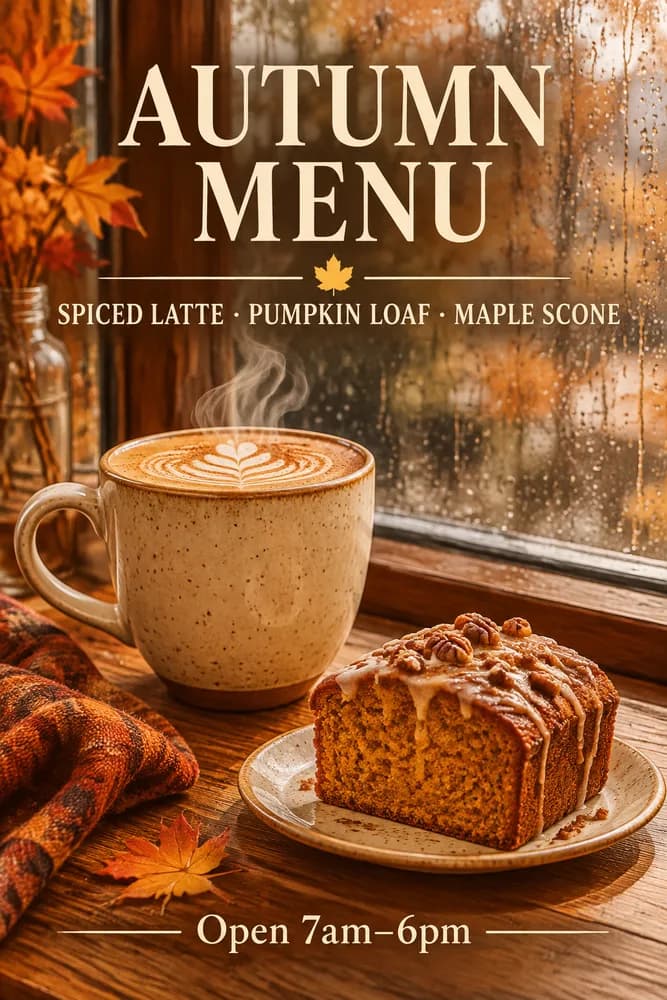
Intended use: a printed poster for a coffee shop's front window announcing the autumn menu. Scene: a warm wooden counter beside a rain-streaked window. Subject: a ceramic mug of spiced latte with a little steam, a slice of pumpkin loaf on a small plate beside it. Text: headline "AUTUMN MENU" in a bold serif at the top; below it "Spiced Latte · Pumpkin Loaf · Maple Scone" in small caps; at the bottom "Open 7am–6pm". Style: warm film-photo look, soft window light, muted orange and brown palette. Constraints: no other text, clean margins.
The short prompt gave a nice café photo, but no headline, no menu items and nothing that works as a poster; the model filled the gaps with its own chalkboard menu. The brief gave a usable poster on the first try: the headline, the three items and the opening hours exactly as written and where we asked, the latte and pumpkin loaf as described, and no stray text. It also came back faster.
Getting text exactly right
- Put every word that must appear in quotation marks, exactly as it should be spelled and capitalized.
- Say where each piece goes and how it looks: "headline at the top in a bold serif", "small caps below it".
- End with "no other text". Without it, Flare in particular adds labels of its own.
- Spell unusual names letter by letter if they come out wrong ("Spell: B-E-T-H-E-L").
- Keep each text block short. Several short lines render more reliably than one long paragraph.
- Use high quality for small or dense text, and Sunburst for screens, menus and infographics.
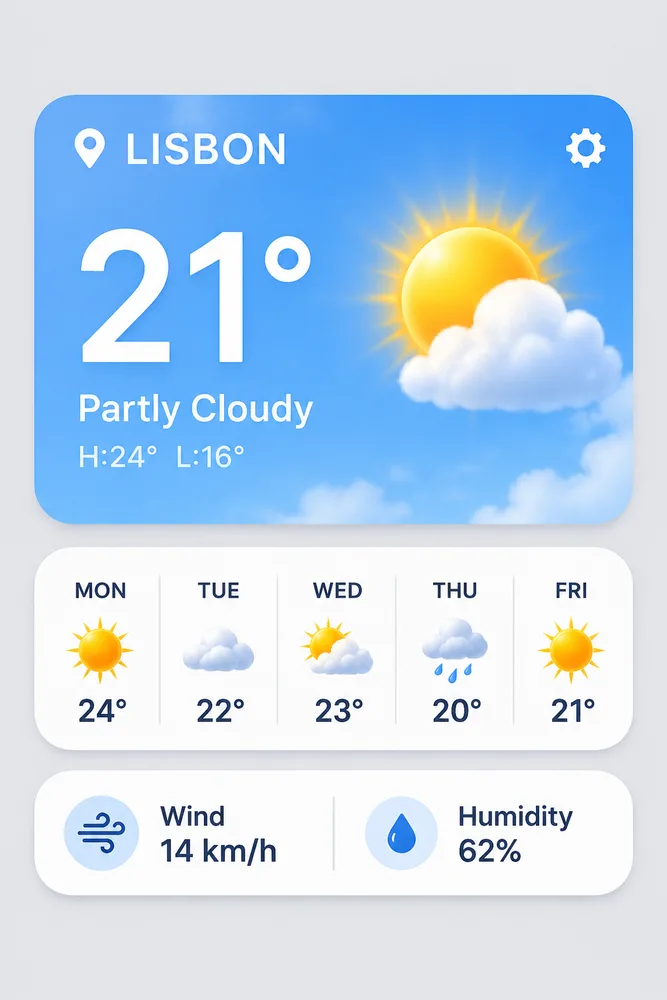
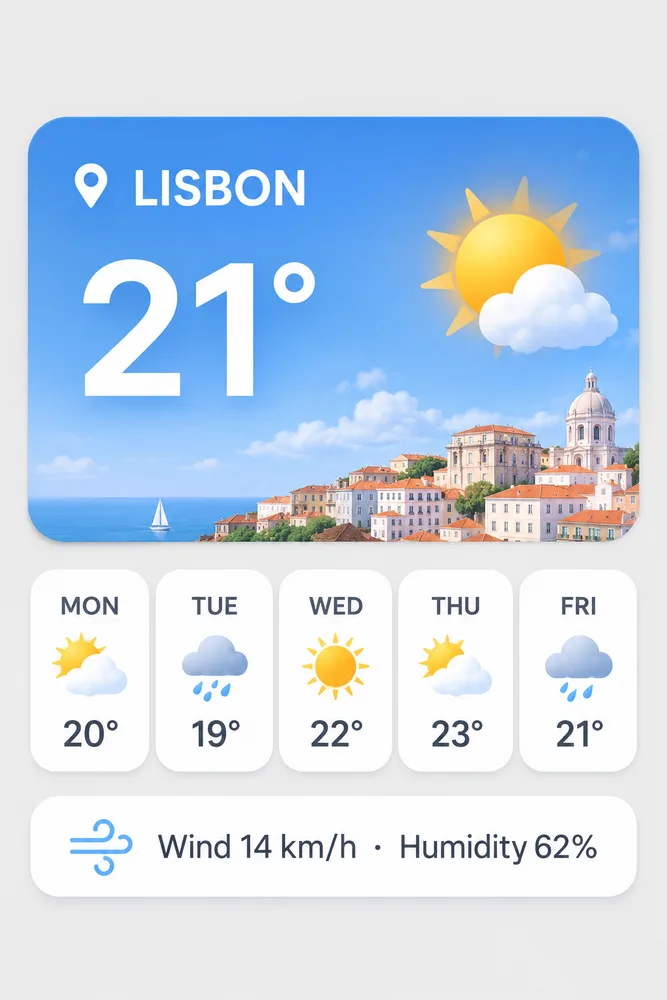
In our tests every model spelled every quoted word correctly, from a poster date line to six infographic steps. The failure we did see was additions: asked for a weather app screen, 2.6 Flare added "Partly Cloudy" and a high/low line nobody requested, while 2.6 Sunburst drew only what was listed.
Photos, products and people
- Say "photorealistic" and use photography language: "candid 35mm look", "shallow depth of field", "soft side light through a window". You do not need exact camera settings.
- Name materials and textures ("brushed steel", "linen", "slate") so surfaces look real.
- Ask for room where you will add copy: "empty space on the right for a headline".
- For people, describe clothing, pose, framing and expression explicitly. In one of our tests a short prompt about a cyclist came back as a glamour-style shot on every model, so leave less to interpretation.
Prompt 5 in the list below puts these into practice: a product photo with materials, light, depth of field and space for a headline, all named.
Edit prompts: change only one thing
- Start with "Change only" and name the one thing to change.
- List what must stay: the subject, its shape, text, colors, layout, lighting.
- Make one change per round, and repeat the keep list every time so details do not drift.
- With several reference images, refer to them by number: "Image 1 is the product, Image 2 is the background". GPT Image Hub accepts up to 16.
- If an edit changes more than you asked, try Sunburst, or set complexity to low in the API.
Background swap
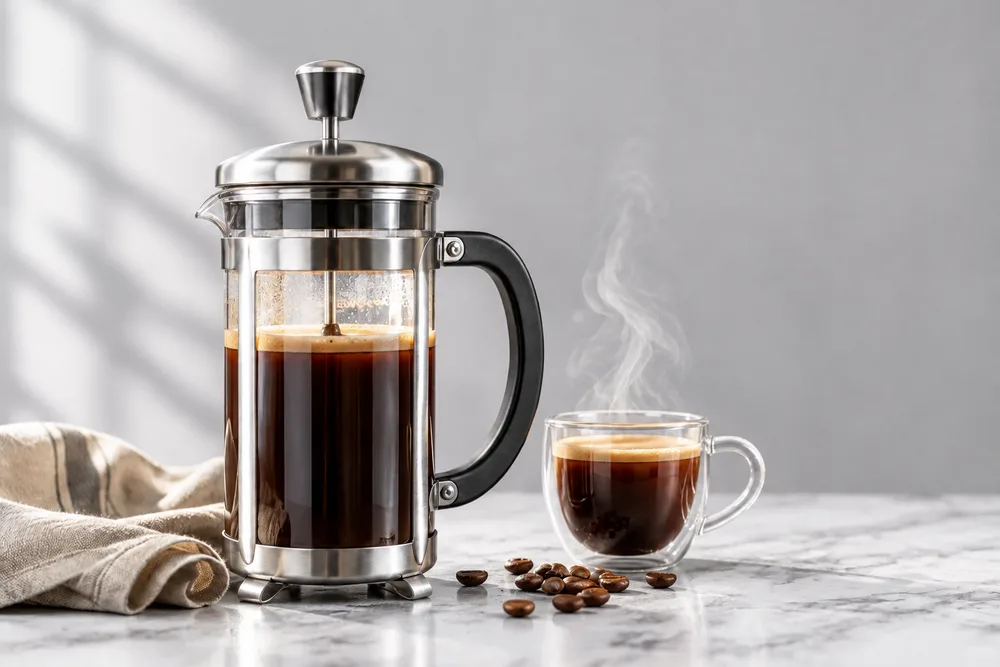
Change only the background: replace the dark slate counter and the window with a white marble counter and a plain soft-gray wall in bright, even daylight. Keep the French press, the cup, the steam, the linen napkin and the coffee beans exactly as they are, with the same shapes, positions and reflections.
One-line text change
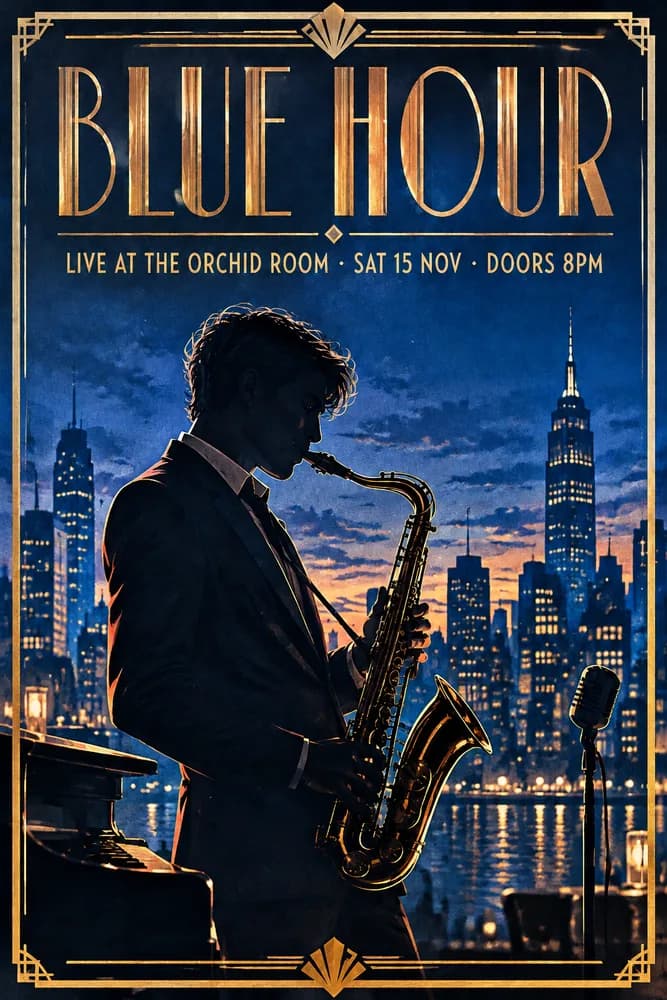
Change only the date line so it reads "SAT 15 NOV" instead of "FRI 14 NOV". Keep every other word, the saxophonist, the skyline, the colors and the layout exactly the same.
Both edits started from 2.6 Flare originals, the product photo and the poster in prompts 5 and 2 below. Each kept everything it was told to keep; the same background swap on Flare also kept a plant and jar we had meant to replace, which Sunburst removed.
Prompts for GIFs, SVGs, markup and complexity
Animated GIFs
OpenAI's advice is to describe the subject, the motion and the loop. Keep the motion small and make it end where it starts, so the loop closes: in an independent test, larger movements stepped rather than flowed and the loop jumped. Plan for 16 frames at most, the limit the API accepted on launch night, and say the subject is "the same in every frame".
{
  "model": "gpt-image-2.6-flare",
  "prompt": "A small paper boat bobs gently on a blue pond, rising and falling once, then returns to its exact starting position. Flat illustration, pale background, the same boat in every frame.",
  "output_format": "gif",
  "frame_count": 12,
  "frame_duration_ms": 120,
  "size": "1024x1024",
  "quality": "medium"
}
GIFs work only on the generations endpoint of OpenAI's API. A GIF request through GPT Image Hub's Saver route came back as a single still frame.
SVG files
Ask for what vectors do well: flat shapes, two or three solid colors (hex codes help), even strokes, and no gradients, shadows, photos or texture. Keep lettering to a minimum; an independent test found SVG output failed on most prompts with text. Set output_format to svg and n to 1, and expect to name the text model that writes the code in svg.model.
Markup-guided edits
Draw on a separate transparent PNG the same size as the photo (a red circle or outline around the target works), send it as markup on the edits endpoint, and write the prompt about the marked area: "Replace the object inside the red outline with…". Say what to keep outside it and ask for the outline to be removed. Markup cannot be combined with a mask.
The complexity setting
Leave complexity at its default, high, for new images, especially dense text and layouts. Set it to low for small, focused edits such as changing a sign or a background if the model changes too much. It costs nothing extra; in an independent test the three levels looked alike on simple prompts.
Which model, quality and size to choose
| Model | Quality | Size | |
|---|---|---|---|
| Quick drafts and variations | Flare | low or medium | 1024x1024 |
| Posters and social graphics | Flare | high | 1024x1536 or 1536x1024 |
| Product and lifestyle photos | Flare | high | 1536x1024 |
| App screens, menus, infographics | Sunburst | high or xhigh | 1024x1536 |
| Packaging and labels | Sunburst | high | 1024x1024 or 1024x1536 |
| Edits that must not drift | Sunburst | high | Same as the original |
| Hero image for print | Either | xhigh or max | Custom, up to 3840 px per edge |
Custom sizes must be multiples of 16, between 1:3 and 3:1, with no edge above 3840 px; above 2560x1440 is experimental. In OpenAI's API, low and medium quality cost 3–4 times more on 2.6 than on 2.5, so drafts are cheaper there; on GPT Image Hub every size and quality costs the same, so use high freely.
More on choosing between the two models: GPT Image 2.6 Flare vs Sunburst.
12 copy-ready GPT Image 2.6 prompts
Prompts 1 to 7 are the ones we tested; their results appear on this page, under the prompt or in the sections above. Prompts 8 to 12 cover workflows we did not test and features the Hub generator does not offer, so they come without an image.
1. Window poster with exact text
Intended use: a printed poster for a coffee shop's front window announcing the autumn menu. Scene: a warm wooden counter beside a rain-streaked window. Subject: a ceramic mug of spiced latte with a little steam, a slice of pumpkin loaf on a small plate beside it. Text: headline "AUTUMN MENU" in a bold serif at the top; below it "Spiced Latte · Pumpkin Loaf · Maple Scone" in small caps; at the bottom "Open 7am–6pm". Style: warm film-photo look, soft window light, muted orange and brown palette. Constraints: no other text, clean margins.
2. Concert poster
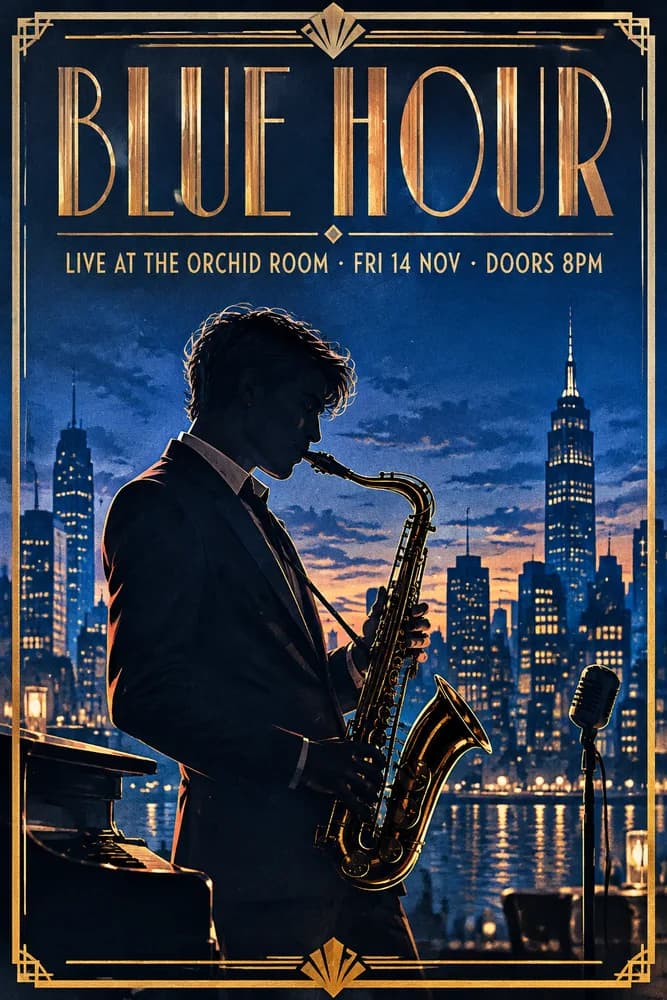
A concert poster for a jazz night. Title in tall art-deco letters: "BLUE HOUR". Below it: "LIVE AT THE ORCHID ROOM · FRI 14 NOV · DOORS 8PM". A saxophonist silhouetted against a deep blue city skyline at dusk, gold accents, subtle paper texture, clean margins.
3. Six-step infographic
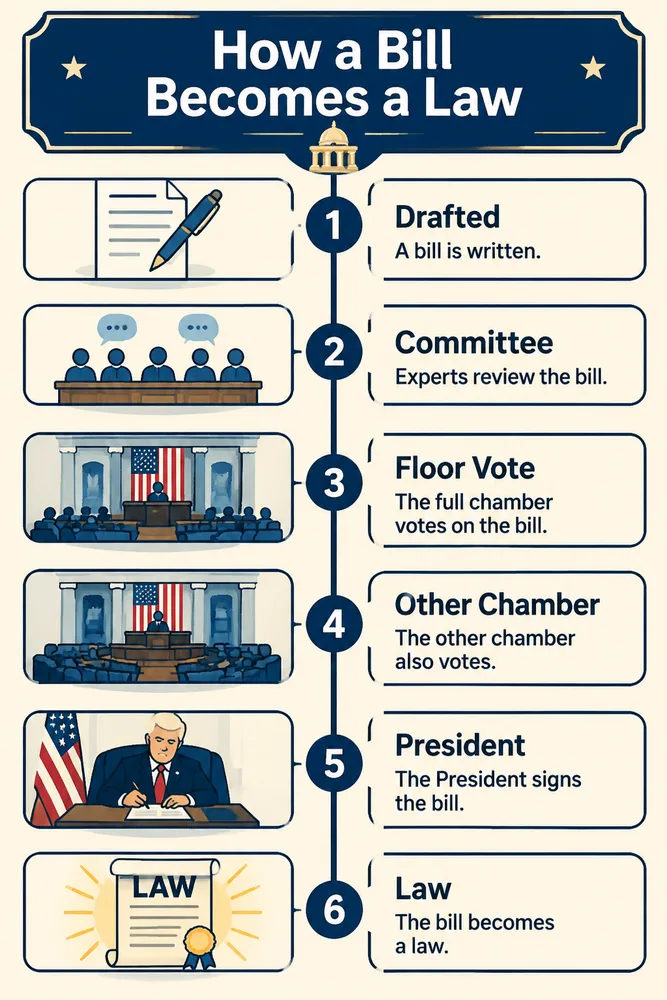
An infographic titled "How a Bill Becomes a Law" with six numbered steps: "1 Drafted", "2 Committee", "3 Floor Vote", "4 Other Chamber", "5 President", "6 Law". Each step has a small flat icon and a one-line caption. A vertical timeline runs down the middle. Navy and cream palette, clean sans-serif type.
4. Mobile app screen
A clean mobile weather app screen shown flat on a plain light-gray background. Top: city name "LISBON" and the temperature "21°". Below: a row of five days "MON TUE WED THU FRI", each with a weather icon and a temperature. Then a card reading "Wind 14 km/h · Humidity 62%". Rounded cards, soft shadows, modern sans-serif UI type.
5. Product hero photo
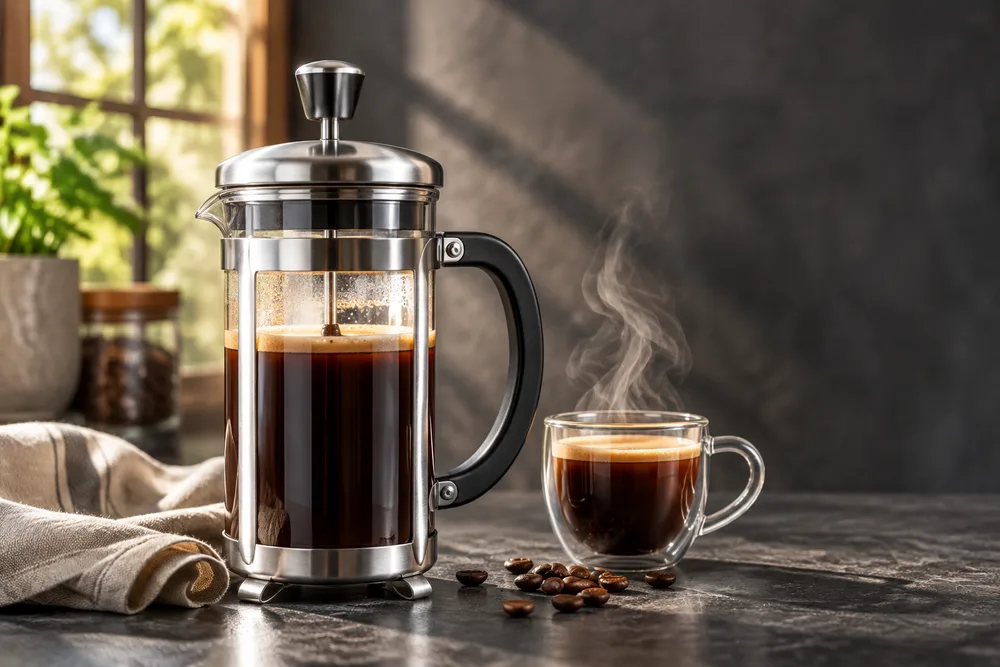
Photorealistic product photo of a brushed-steel French press on a dark slate counter, morning side light through a window, steam rising from a cup beside it, a folded linen napkin and a few scattered coffee beans, shallow depth of field, empty space on the right for a headline.
6. Background swap edit
Change only the background: replace the dark slate counter and the window with a white marble counter and a plain soft-gray wall in bright, even daylight. Keep the French press, the cup, the steam, the linen napkin and the coffee beans exactly as they are, with the same shapes, positions and reflections.
7. One-line text edit
Change only the date line so it reads "SAT 15 NOV" instead of "FRI 14 NOV". Keep every other word, the saxophonist, the skyline, the colors and the layout exactly the same.
8. Honey jar label
Photorealistic product photo of a glass jar of honey with a kraft paper label. Label text, exactly: "WILDFLOWER HONEY" in a bold serif, and below it "Raw · Unfiltered · 340 g" in small caps. A wooden dipper beside the jar on a linen cloth, warm side light. No other text.
9. Product placed into a scene
Image 1 is a photo of a white sneaker. Image 2 is a photo of a city rooftop at sunset. Place the sneaker from Image 1 on the ledge in Image 2 at a realistic size, lit by the sunset from the left. Keep the sneaker's shape, logo and colors exactly as in Image 1.
10. Looping GIF
A small paper boat bobs gently on a blue pond, rising and falling once, then returns to its exact starting position. Flat illustration, pale background, the same boat in every frame.
11. SVG icon
A flat vector icon of a bicycle inside a rounded square. Two colors only: dark green #1F4D3A and cream #F4EBD9. Thick, even strokes, no gradients, no shadows, no text.
12. Markup edit
Replace the object inside the red outline with a small potted cactus in a terracotta pot. Keep the desk, the lighting, the shadows and everything outside the outline unchanged, and remove the red outline from the result.
Common mistakes
- Describing a vibe instead of the content ("cozy, aesthetic, 8k"): the model fills the gaps with its own choices.
- Leaving text unquoted or unplaced, then getting paraphrased or misplaced words.
- Forgetting "no other text" on screens and labels, and getting extra labels.
- Asking for several changes in one edit, or not saying what to keep.
- Using max quality for drafts: through the API it costs about four times high and took more than twice as long in an independent test.
- Expecting GIFs or SVGs from the edits endpoint, or from a generator that only returns still images.
Try these prompts on GPT Image Hub
Prompts 1 to 9 work as written in the GPT Image Hub generator with GPT Image 2.6 Flare Saver or Sunburst Saver, at a flat 10 credits per image for any size and quality; new accounts get 25 free credits. Prompts 10 to 12 need OpenAI's API. For thousands more tested prompts, browse the prompt library.
GPT Image 2.6 prompting FAQ
How do I write a good GPT Image 2.6 prompt?
Write a short brief with one line each for what the image is for, the scene, the subject, the exact text in quotes, the style and the constraints. Describe what the image has to contain rather than listing style keywords.
How do I get GPT Image 2.6 to render text correctly?
Put each word in quotation marks exactly as it should appear, say where it goes and in what type, end with "no other text", and use high quality for small text. Use Sunburst for dense text such as menus and app screens.
How long should a GPT Image 2.6 prompt be?
As long as it needs to be to name everything that matters, usually three to eight short lines. In our test a six-line brief produced a finished poster where a four-word prompt did not.
How do I edit an image with GPT Image 2.6 without changing the rest?
Say "change only" the one thing, list what must stay, make one change per round, and repeat the keep list each time. Use Sunburst for edits that must not drift, and in the API try complexity low.
Do GPT Image 2.5 prompts work on 2.6?
Yes. The prompt style, sizes and settings are the same, so prompts carry over; check a few on both, since 2.6 renders differently. See GPT Image 2.6 vs 2.5.
How do I prompt GPT Image 2.6 for a GIF?
Describe the subject, a small motion and a loop that ends where it starts, and say the subject is the same in every frame. Set output_format to gif with frame_count (16 or fewer in practice) and frame_duration_ms on OpenAI's generations endpoint.
Which quality should I use?
Low or medium for drafts, high for most finished images and small text, xhigh or max only for hero images. On GPT Image Hub every quality level costs the same, so high is the sensible default there.
Sources
Prompting advice combines OpenAI's prompting guide for its GPT Image models, OpenAI's image generation guide for the 2.6 features as of 5 November 2026, CellCog's launch-night tests and our own prompts on GPT Image Hub on 5 November 2026.
- OpenAI Cookbook: GPT Image generation models prompting guide
- OpenAI: GPT-Image-2.6 Flare model page
- OpenAI: GPT-Image-2.6 Sunburst model page
- OpenAI image generation guide
- TestingCatalog: OpenAI launches Images 2.6 with GIFs and image reference
- CellCog: GPT Image 2.6 vs 2.5, 80 generations on launch night
Keep exploring