
Önemli Nokta Teknik Açıklama Bilgi Turu
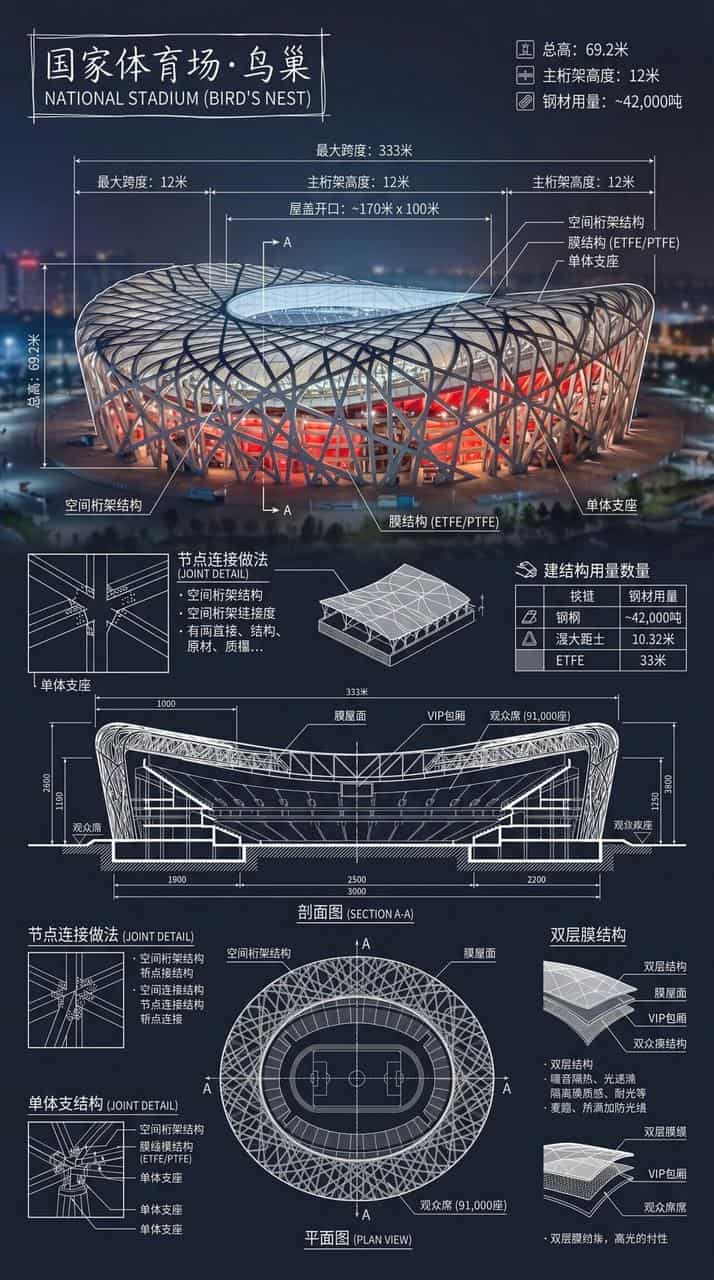
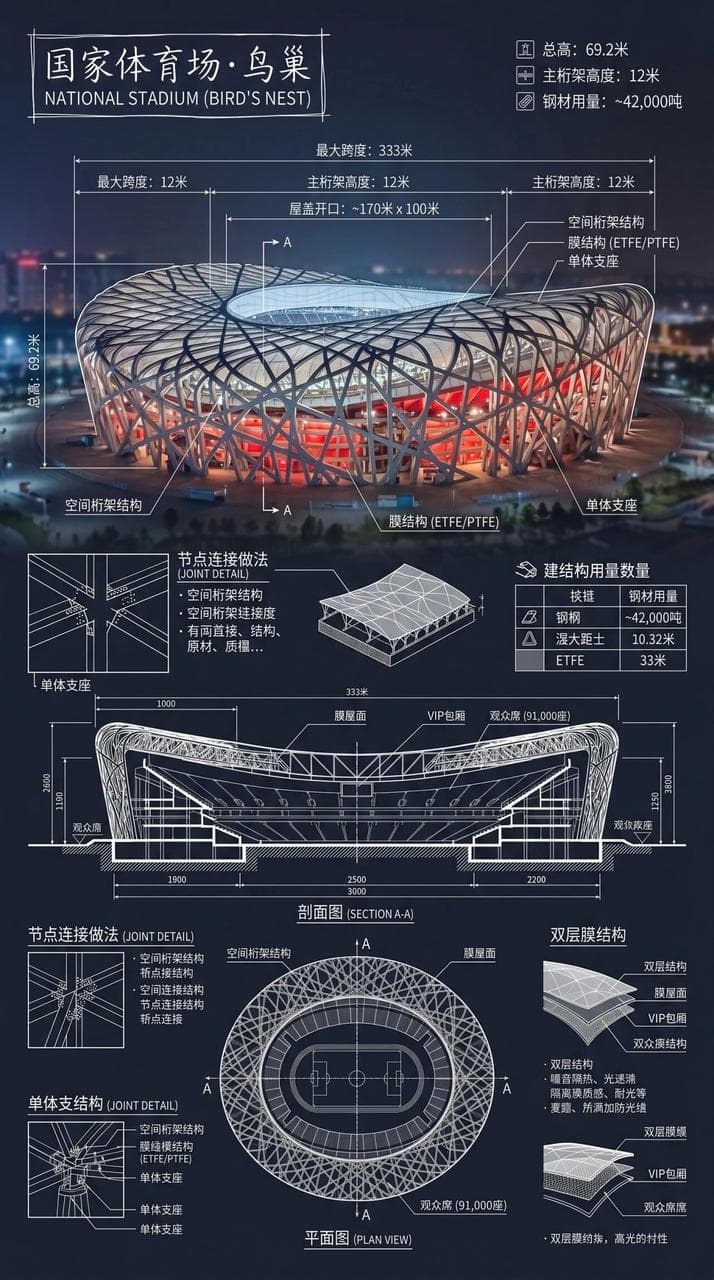
Ulusal Stadyum·Kuş Yuvası'nın bir infografikini oluşturun. Önemli yerlerin gerçek fotoğraflarını beyaz teknik not katmanlarıyla birleştirin ve binanın adını köşedeki elle çizilmiş bir kutuya yazın. Resim, önemli yapısal…
İstemi
Ulusal Stadyum·Kuş Yuvası'nın bir infografikini oluşturun. Önemli yerlerin gerçek fotoğraflarını beyaz teknik not katmanlarıyla birleştirin ve binanın adını köşedeki elle çizilmiş bir kutuya yazın. Resim, önemli yapısal verileri, önemli ölçümleri, malzeme miktarlarını, detaylandırma yöntemlerini gösteren, kesitler, planlar ve önemli mimari ve mühendislik özelliklerini gösteren karmaşık ve net beyaz teknik açıklamalarla üst üste getirilmiş ve tam bir genel bakış uzun resmine entegre edilmiştir. Beyaz çizgiler ayrıntılı ve net, gerçek ortam görünür, dikey kompozisyon profesyonel, rasyonel ve okunabilir.
Bu istem nasıl kullanılır?
Oluşturmadan önce Önemli Nokta Teknik Açıklama Bilgi Turu isteminin tamamını okuyun ve konuyu, stili, kamerayı, ışıklandırmayı ve kompozisyon gereksinimlerini tanımlayın.
Parantezli veya bağımsız değişken tarzı yer tutucuları ürününüz, karakteriniz, markanız, sahneniz, renk paletiniz veya en boy oranı gereksinimlerinizle değiştirin.
https://www.gptimagehub.com/tr/generate?promptId=cmogxnc4y00nrxt5gzz39lgk6 dosyasını açın, görüntüyü oluşturun, ardından gerekirse daha spesifik konu, metin, düzen veya negatif kısıtlamalarla istemi hassaslaştırın.
Bilgi İstemi SSS
Önemli Nokta Teknik Açıklama Bilgi Turu istemi en iyi ne için kullanılır?
Bu istem, yeniden kullanılabilir bir yapı, ayrıntılı görsel yön ve tutarlı çıktı kalitesi istediğiniz infografik / eğitim görselleri için en iyi şekilde kullanılır.
İstemi oluşturmadan önce düzenleyebilir miyim?
Evet. Bilgi istemi metninin tamamı bu sayfada görünür; böylece oluşturmadan önce konuları, ürün adlarını, renkleri, kompozisyonu, kamera terimlerini, en boy oranını ve stil notlarını değiştirebilirsiniz.
Bu istemle hangi modeli kullanmalıyım?
Bilgi istemi meta verilerinde gösterilen modeli varsayılan başlangıç noktası olarak kullanın. Başka bir görüntü modeli aynı en boy oranını ve talimat stilini destekliyorsa istemi uyarlayabilir ve sonuçları karşılaştırabilirsiniz.