
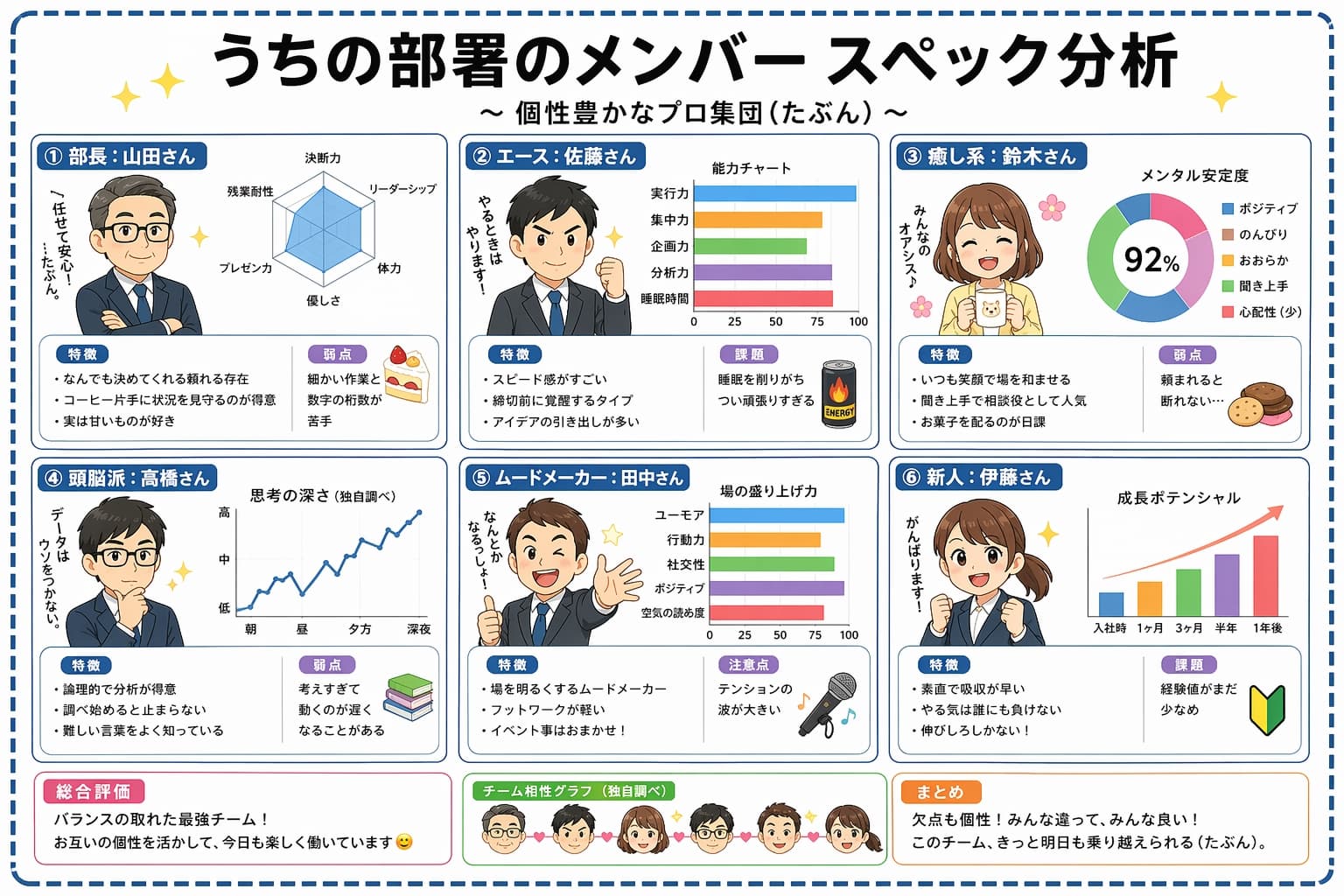
Japanese Team Analysis Infographic
GPT Image 2 Japanese team member analysis infographic with radar charts and cute avatars
Prompt
Create a Japanese-language infographic titled "うちの部署のメンバー スペック分析" (Our Department Member Spec Analysis) with subtitle "個性豊かなプロ集団(たぶん)". Layout as a 2x3 grid of six member cards on a clean white background with pastel accents and star decorations. Each card features a cute chibi-style cartoon avatar and includes: member name and role in Japanese, a radar chart or bar chart showing their stats, bullet-point strengths and weaknesses in Japanese. Add a summary section at the bottom with overall team evaluation, a team compatibility graph placeholder, and a final takeaway note. Cheerful office illustration style, soft rounded UI elements, kawaii aesthetic, highly legible Japanese typography, no watermark.
What you can customize
Swap these parts of the prompt for your own subject or wording before you generate.
“うちの部署のメンバー スペック分析”quoted wording“個性豊かなプロ集団(たぶん)”quoted wording
Prompt details
- Category
- Infographic / Education
- Model
- GPT IMAGE 2
- Cost per image
- 1K: 43 credits · 2K: 86 credits · 4K: 143 credits
- Aspect ratio
- 1:1
- Added
- Updated