
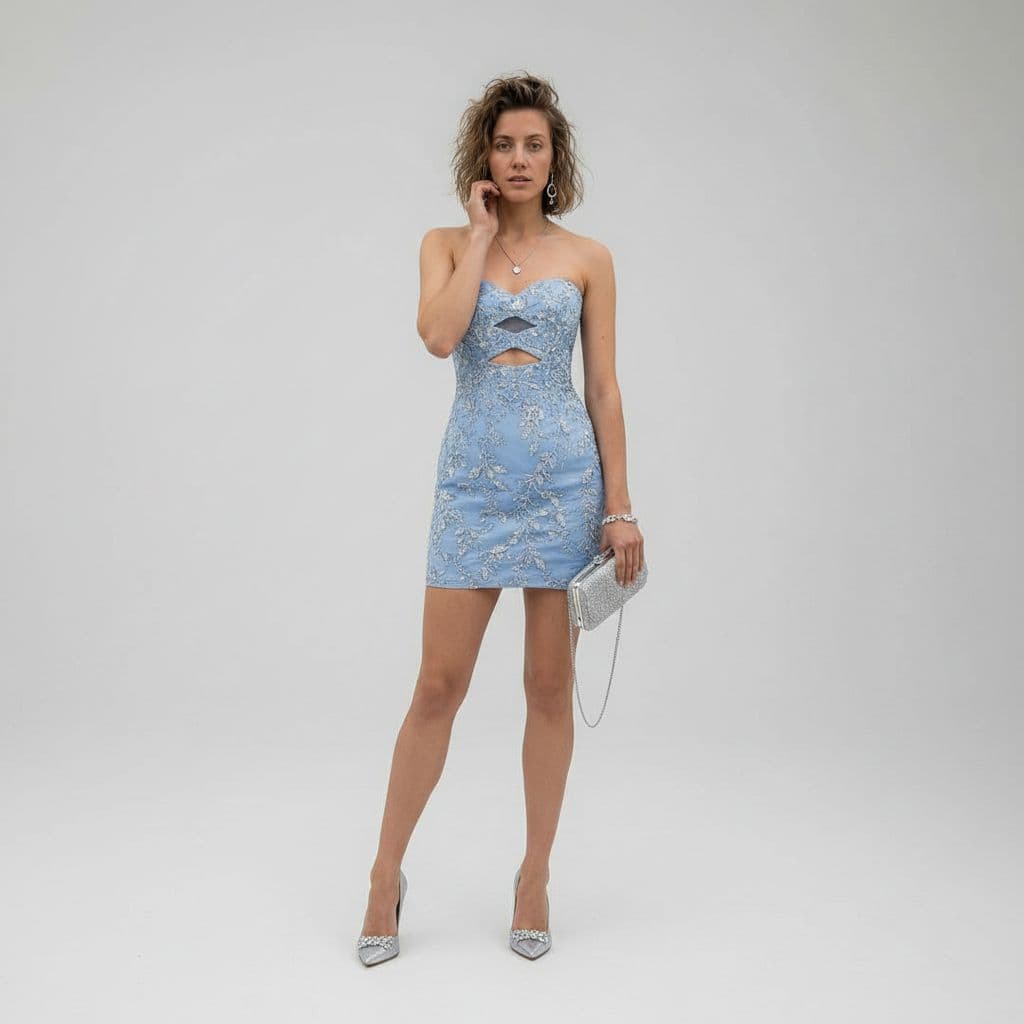
Luxury Studio Outfit Transformation
Transform any casual snapshot into an editorial fashion portrait in a fitted cocktail dress for social media or portfolios. Upload your own photo.
Prompt
Using REFERENCE_0 as the subject base, transform the casual desert snapshot into a full-body luxury fashion studio portrait. Replace the denim jacket, tank top, and shorts with a fitted strapless mini cocktail dress in {argument name="dress color" default="powder blue"} with ornate silver floral embroidery and exactly 2 geometric cutouts at the chest and upper waist. Change the setting to a clean seamless light-gray studio background with polished high-end editorial styling. Add 1 silver clutch with a thin chain strap in the subject's right hand and 1 pair of pointed silver high heels. Refine the pose into an elegant standing fashion pose with one hand near the face, keep the same person and hair identity, and apply soft cinematic luxury lighting with crisp 8K fashion-photography detail.
Prompt details
- Category
- Portrait & Photography
- Model
- GPT IMAGE 2
- Cost per image
- 1K: 43 credits · 2K: 86 credits · 4K: 143 credits
- Aspect ratio
- 1:1
- Creator
- @Abdullah AI
- License
- CC BY 4.0
- Added
- Updated